Merge subscription and one-time orders in Shopify
Mergify is a Shopify app that combines a customer's subscription and one-time orders into one new order for a single shipment. Review the pair in Smart Suggest and check your subscription app's workflow before your first merge.
Pack the renewal and the extra purchase together, with one label instead of two.

Why can a subscription renewal create an extra shipment?
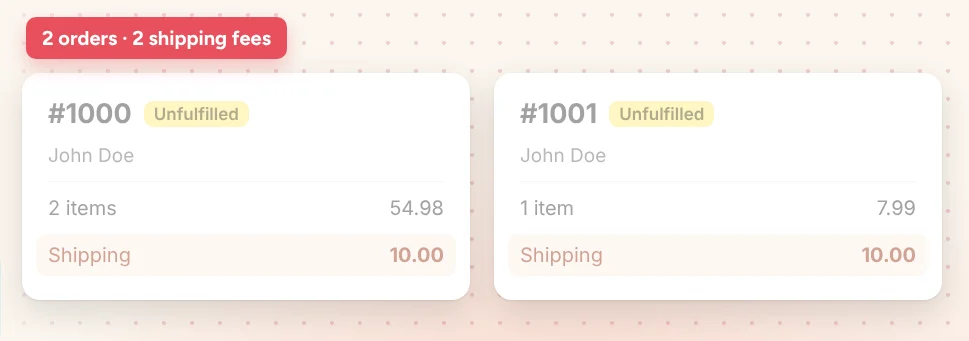
A renewal and a separate one-time purchase can leave you with two orders to pack for the same customer and address.
For example, a customer's subscription renewal is created this week, and they also buy an extra item from your online store. If both orders are still unfulfilled, you may want to send them together.
As of November 2026, merchants who run subscription apps use Mergify.
How do I set up Mergify for subscriptions and one-time orders?
Identify the orders, review their eligibility in Smart Suggest, and check one merge before moving to automatic merging.
- Find the renewal and the one-time order. Check the customer, delivery address and fulfillment status. If your subscription app tags renewal orders, that tag helps your team spot them. Tag any order that must ship on its own with
no-merge. - Set Smart Suggest Filtering Rules. Include unfulfilled orders, add financial-status or creation-date conditions that fit your process, and exclude the
no-mergetag. Don't require a renewal tag, or the one-time order will be left out. An order passes when it matches every condition in one active rule, so check that no other rule admits orders you meant to exclude. - Review the group in Smart Suggest. Choose grouping by customer and address. Untick any order that should ship separately, keeping at least two selected. The Smart Suggest guide explains reviewing and approving groups.
- Choose Merge Settings before merging. Check the settings assigned to Smart Suggest. Recalculate shipping from your store's rates, then choose whether to keep or refund the difference. Undo cannot reverse shipping refunds already sent. Choose Merge to Order and use its test mode to keep the merged order out of sales reports.
- Check with your subscription app, then test one merge. Ask your subscription app how a merged renewal order affects the subscription. Test with orders you control, with Auto Merge off. Test mode is not a simulation: refunds, notifications and original-order actions still run. Afterwards, check History, Shopify's payment and refund records, and your warehouse processing.
- Consider Auto Merge after those checks. As of November 2026, Auto Merge requires Advanced or Professional. Choose a delay counted from the customer's latest order; each new order starts it again. Review Auto Merge's separate Filtering Rules, active order window, and Merge Settings before turning it on. Activating it can process existing eligible orders, not only new renewals. See Auto Merge timing and setup.
Will merging affect the subscription?
Mergify creates a new merged order and keeps the originals in Shopify; with Merge to Order, the existing payments stay on the originals. What happens to the subscription itself depends on your subscription app, so check with it and test one merge first.
These payment statements apply to purchases already paid for.
Merge to Order leaves inventory with the originals and does not move their payments or charge the customer again. Refunds stay on the originals, so check those records when you review shipping refunds.
Completing a merged draft changes inventory and sales data; the Merge to Order reporting treatment does not apply to that completed draft.
What should I check after the first combined shipment?
Check the merged order, its originals, and the fulfillment and shipping choices you configured.
History records the original orders, merged order, merge date, merge method, and any shipping refunded. If you chose to fulfill originals with the merged order, check the originals and their copied tracking number after fulfillment.
Review your shipping and original-order settings before repeating the workflow.
What should I know before combining a subscription order with a regular order?
Check both orders' eligibility, the original payment records, and your subscription app's guidance before combining them.
Can I merge a subscription and one-time order in Shopify?
Mergify can combine separate orders from the same customer into a new merged order, including a subscription order and a regular order. Check that both orders are eligible and intended for the same shipment. Confirm the workflow with your subscription app and test one merge first.
Can I merge on the day my renewals are created?
Yes, with Auto Merge on Advanced or Professional, as of November 2026. Choose daily at a set hour or weekly on a set day and hour; both use your store's timezone. Check the Auto Merge Filtering Rules first, because activating it can process existing eligible orders.
Where do the payments for a combined subscription shipment stay?
On the original orders. With Merge to Order, Mergify does not move the existing payments or charge the customer again. Refund those payments on the original orders in Shopify. This applies to purchases already paid for.
Can I tell subscribers their orders were combined?
Yes. Mergify can email customers when their orders are merged, on every plan as of November 2026. Edit the email to tell subscribers their renewal and extra purchase arrive in one parcel.
Can the original orders show tracking for the combined shipment?
Mergify can fulfill the original orders automatically when the merged order is fulfilled, copying its tracking number. Choose that option in Merge Settings for the method you use to combine the renewal and one-time order.
Will Auto Merge use the rules I reviewed in Smart Suggest?
Smart Suggest and Auto Merge have separate Filtering Rules, so check that both the renewal and regular order qualify under the Auto Merge rules. Review its Merge Settings too before enabling it. As of November 2026, Auto Merge requires Advanced or Professional.
How can I start combining renewal and one-time orders?
Start with one pair you have checked with your subscription app. Use Smart Suggest to review the orders, and check Mergify plans and merge allowances before expanding the workflow.